Guides · Form Builder
Build a form
Create a form, add questions and sections, show questions only when they apply, and publish it.
An owner or admin builds and publishes forms. Everyone in the clinic can send them and read the answers.
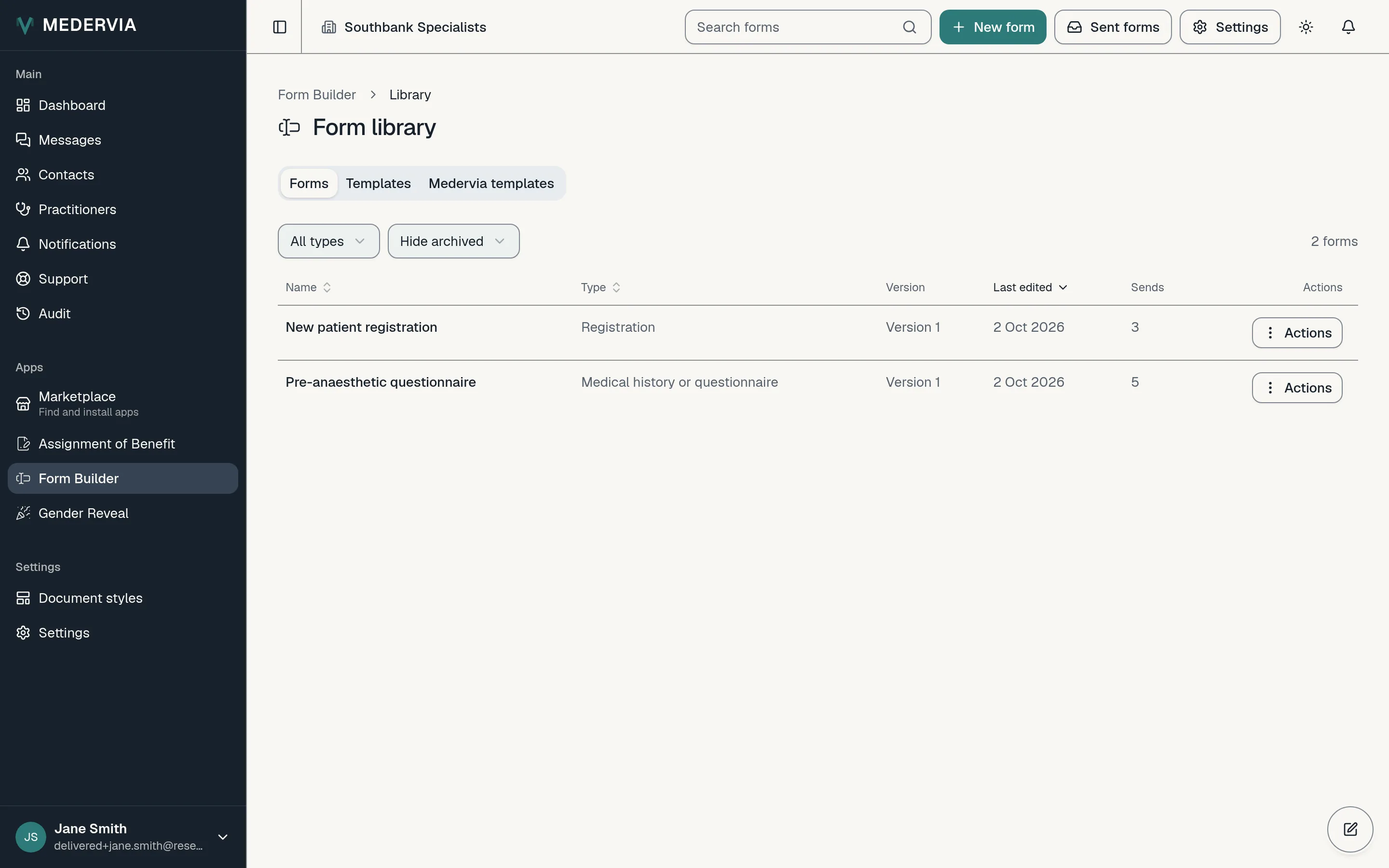
Start a new form
Open Form Builder, go to the Library, and press New form. Start from a blank form or a template, give it a name and a type, and choose whether it needs a signature. Then press Create form.
The Medervia templates tab in the Library has ready-made forms. Press Use this template to make a copy you can change.
Add questions
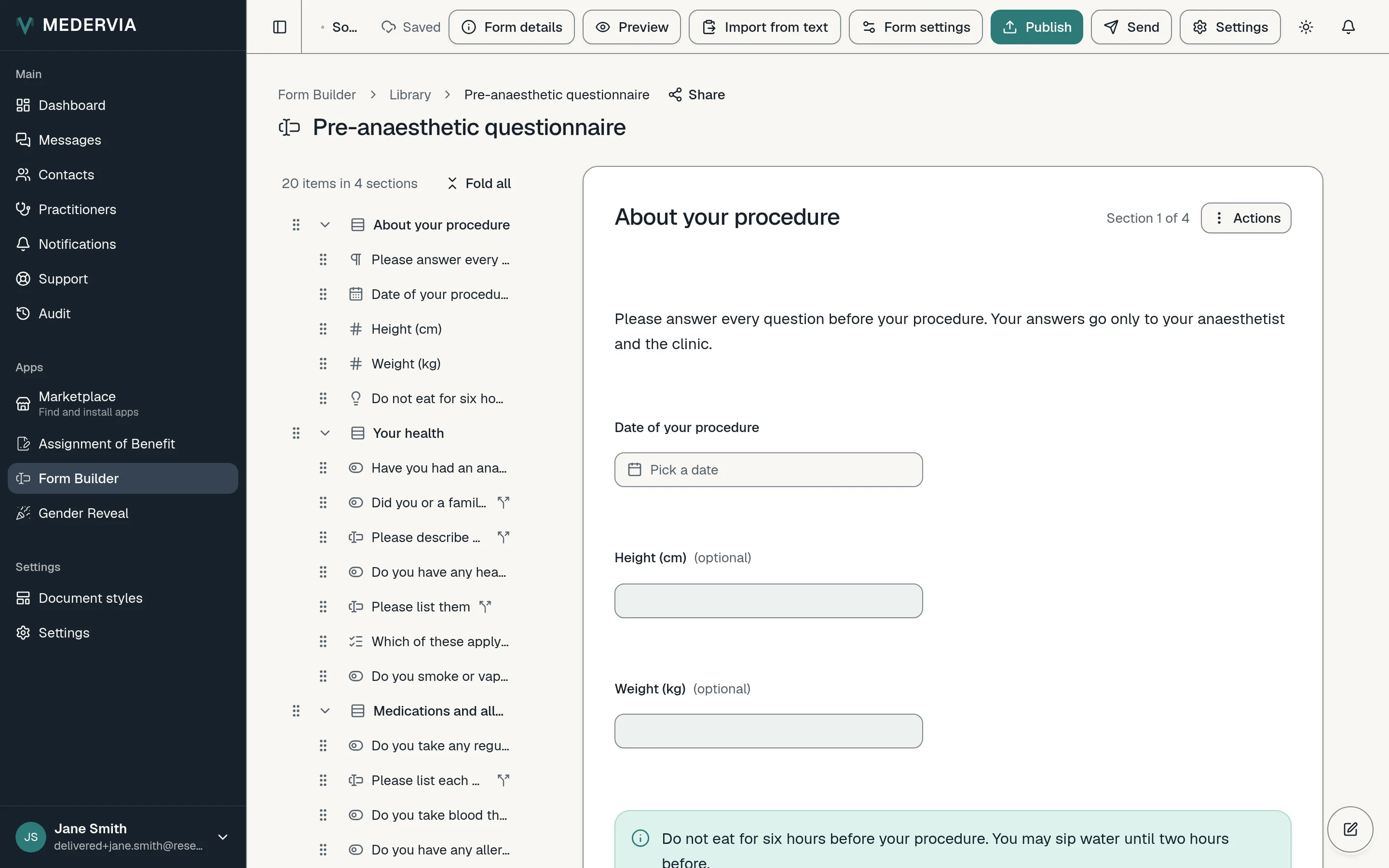
Press Add wherever you want a new item. You can ask for short or long answers, yes or no, a choice from a list, dates, times, numbers, email addresses and phone numbers, and add headings and notes between them.
Press Add section to split a long form into steps.
Show a question only when it applies
Select a question and use Show only if… to show it only after a particular answer to an earlier yes-or-no or list question. A whole section can be shown the same way.
Already have the form? Bring it in
Press Import from text and paste your existing form. Medervia turns it into questions you can tidy up. You can also ask your own AI to draft the form, from the Use AI tab.
Preview and publish
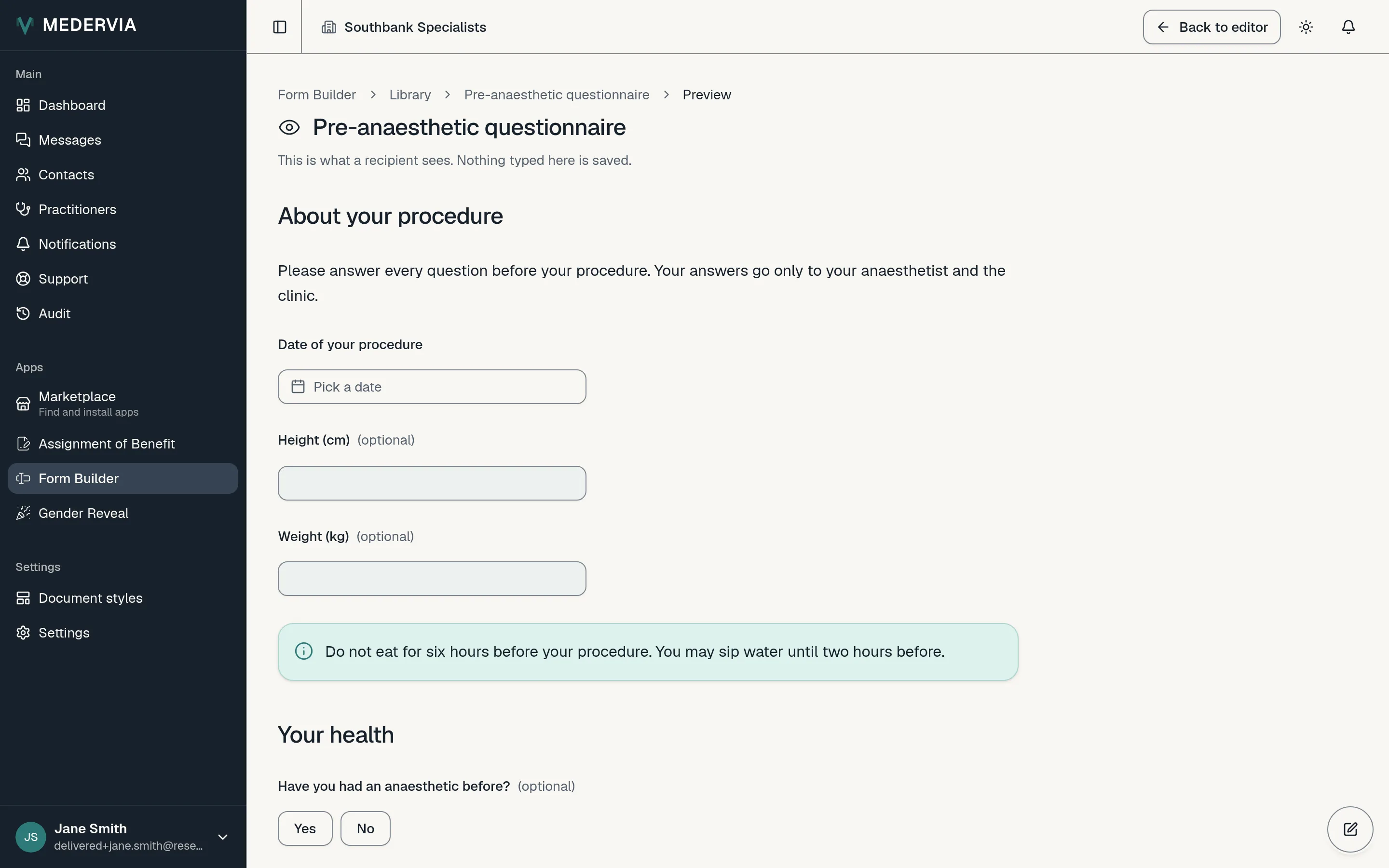
Press Preview to see the form exactly as the person filling it in will. When it is right, press Publish.
Each time you publish, Medervia keeps a new version. A form someone has already been sent keeps the questions it was sent with.
Next
Still stuck? Open a ticket from Support in the app, or send us a message.