Guides · Getting started
Choose and confirm your document style
Choose how your PDFs look, add your branding, and confirm it so you can send agreements and forms.
An owner or admin chooses and confirms the style.
Choose a style
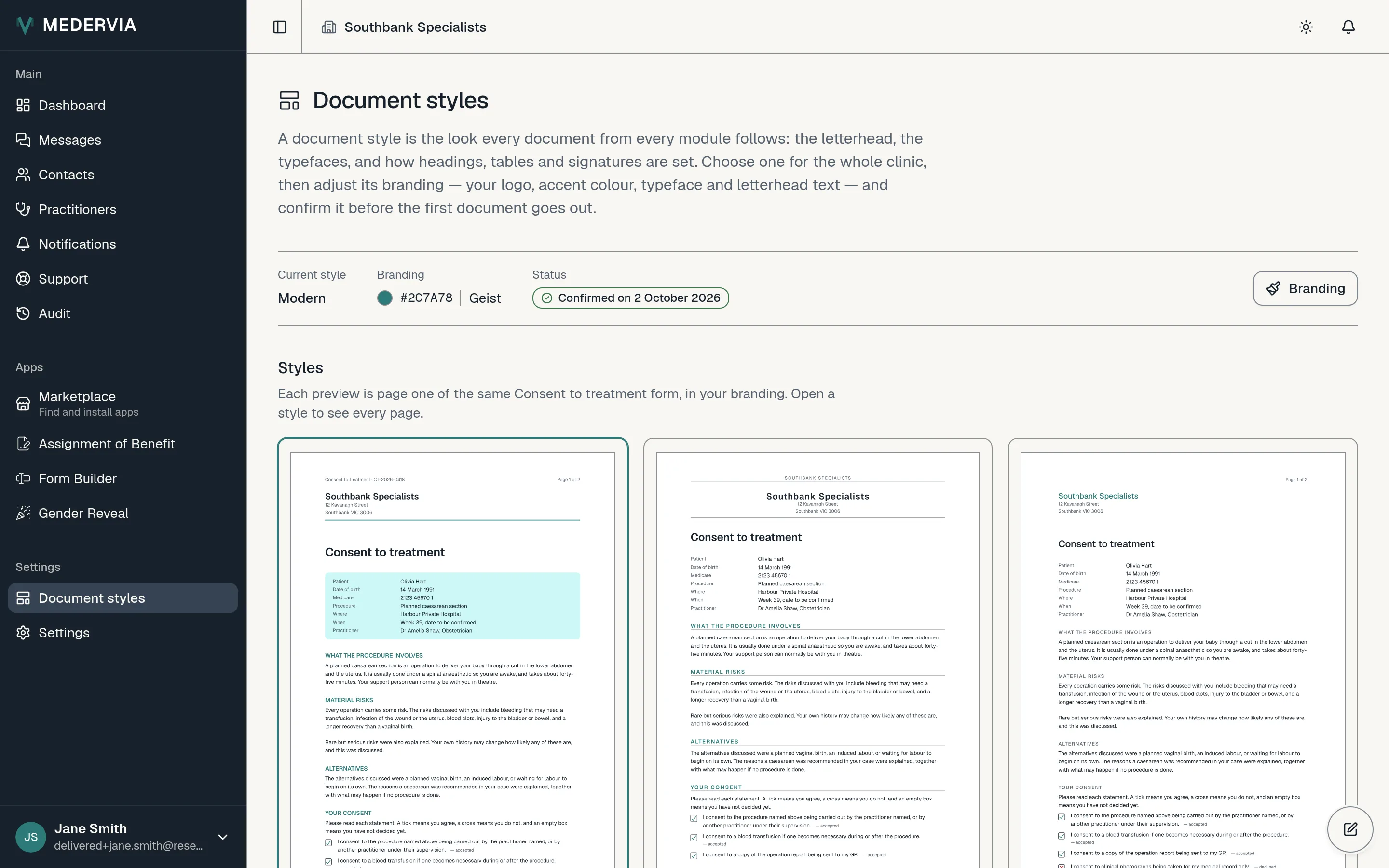
Open Document styles in the sidebar. There are three styles: Modern, Formal and Minimal. Open a preview of each, and press Use this style on the one you like.
Add your branding
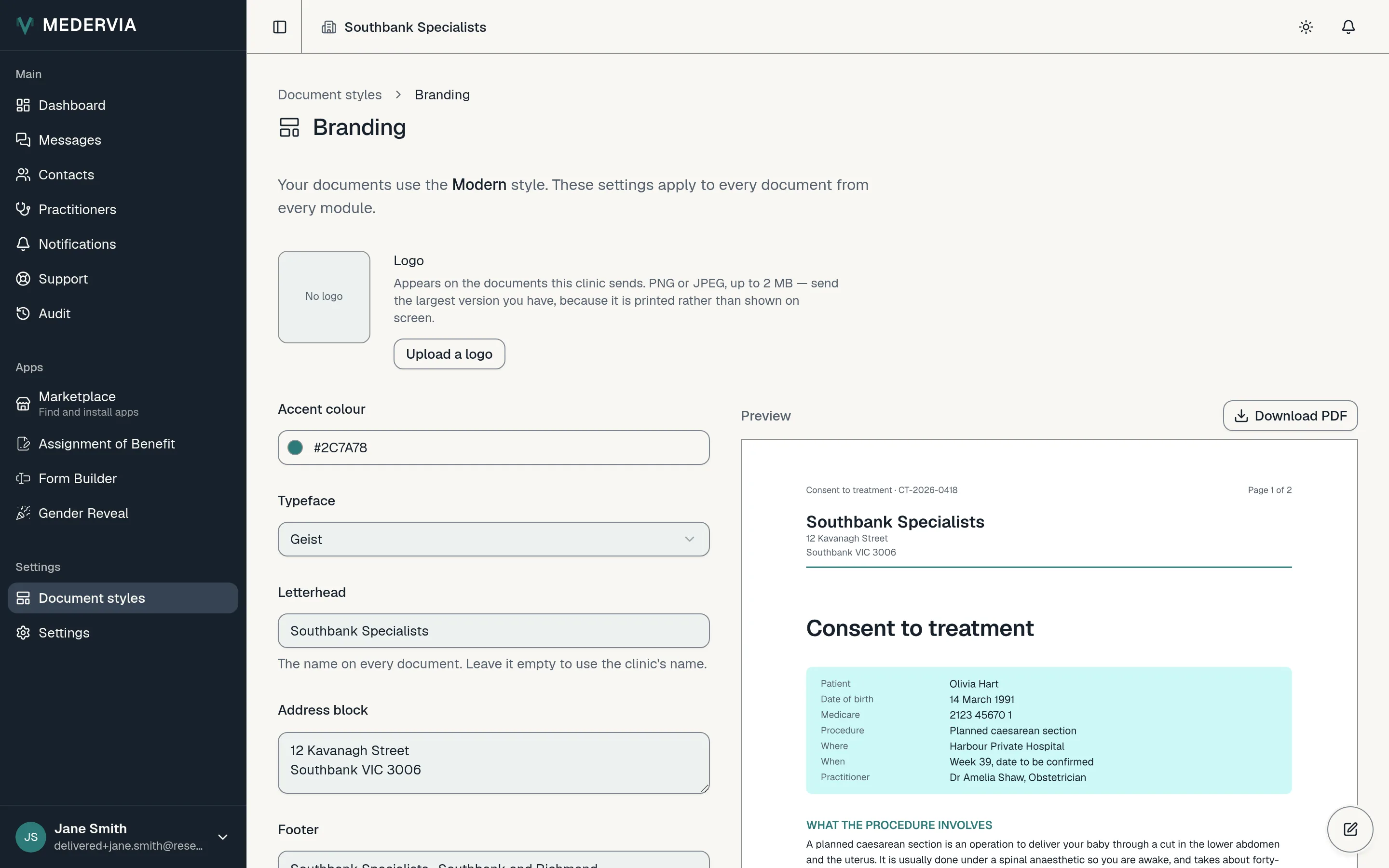
Press Branding. Choose an accent colour and a typeface, and fill in your letterhead, address block and footer. To fill them from your clinic's details, press Use clinic details.
The preview updates as you type. When you are happy, press Save branding.
Confirm it
Check the preview carefully, then press Confirm for use. Until the style is confirmed, your clinic cannot send agreements or forms.
If you change the style, the branding or the logo later, you need to confirm it again. That way your clinic always signs off on what patients receive.
Next
Still stuck? Open a ticket from Support in the app, or send us a message.