Guides · Your clinic
Install Medervia and turn on notifications
Put Medervia on your phone's Home Screen or your computer, and get a notification when patients act.
On an iPhone or iPad
Open Medervia in Safari. Tap the ⋯ button beside the address bar, then Share. Tap Add to Home Screen, leave Open as Web App switched on, and tap Add.
From now on, open Medervia from its icon on your Home Screen.
On an iPhone or iPad, notifications only work once Medervia is on your Home Screen.
On Android, Mac or Windows
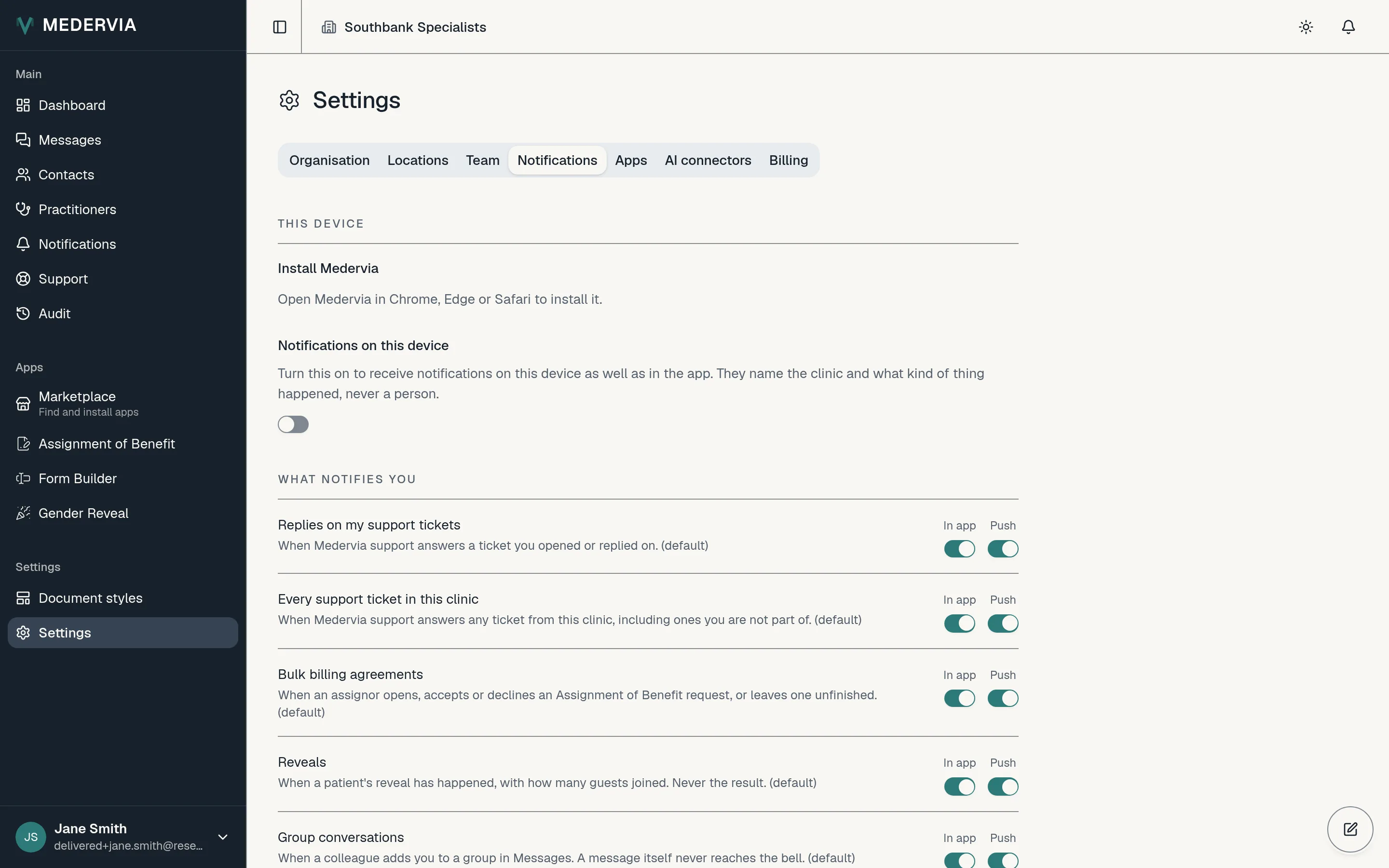
Go to Settings, open the Notifications tab, and press Install under This device. This works in Chrome and Edge. In Safari on a Mac, choose File, then Add to Dock.
Turn on notifications
In the same place, switch on Notifications on this device, and allow notifications when your browser asks. To check it works, press Send a test notification.
Choose what you hear about
Under What notifies you, each kind of notification has two switches: one for inside the app and one for your device.
Good to know
- A notification names your clinic and what happened, never a patient. Tap it to open the record it is about.
Next
Still stuck? Open a ticket from Support in the app, or send us a message.