Guides · Handbook
The map, the PDFs and the export
See how procedures connect, print one, the map or the whole handbook, and take every procedure away as Markdown.
Anyone in the clinic. PDFs and the export are never closed by the subscription.
Open the map
Press Map at the top of the Handbook page. A procedure sits in the middle with the procedures it leads to and the ones that lead to it: a solid line is a decision's answer, a dashed line is a link in the text. Press a procedure on the map to open it, or Show everything for the whole handbook.
On a phone the same procedures are rows, each with where it leads. A procedure's own page shows its neighbours too, under Leads to and Linked from.
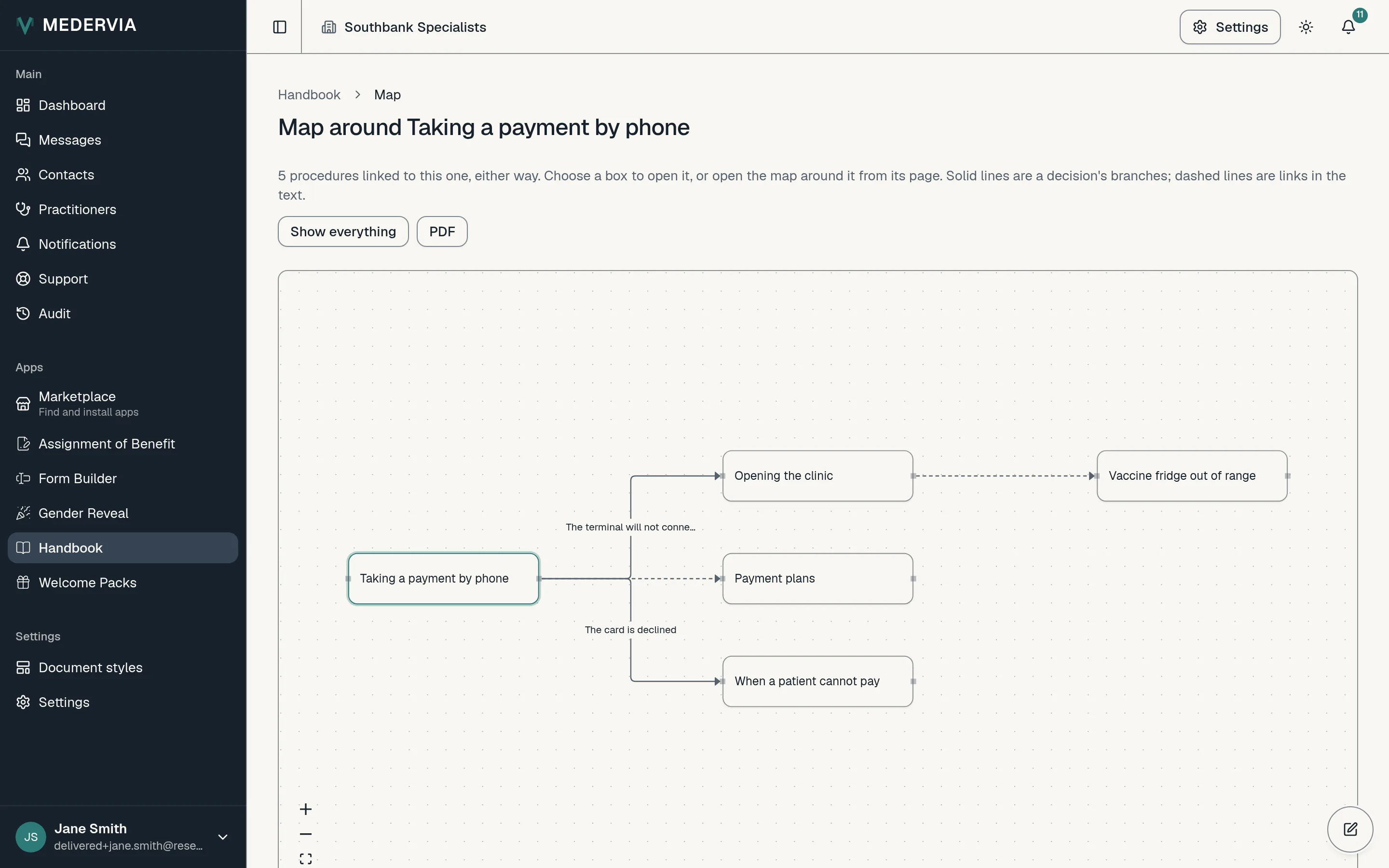
Print a procedure or the map
On a procedure, press PDF in the top bar for that procedure in your clinic's document style. On the map, PDF prints the map. Each is made the moment you ask for it, dated in the footer, and downloaded rather than stored.
Print the whole handbook
On the Handbook page, press PDF in the top bar. Every procedure in force is printed by title, with a cover and contents, each procedure from a new page, links between procedures as links to their pages with the page number beside them, a checklist's steps, and an index by tag.
Take it away as Markdown
Go to Settings and open the Data export tab. Handbook offers every procedure as Markdown, with links between procedures and decisions written out, so your handbook is never locked in. An owner or admin downloads it, and each export is written to the audit trail.
Good to know
- Each PDF is recorded in the audit trail as a Handbook export, with what was printed.
- A clinic's own AI tool, once connected, can list, search and read procedures in the same Markdown, and draft new ones. It never publishes, and never sees acknowledgements or checklist days.
Next
Still stuck? Open a ticket from Support in the app, or send us a message.