Guides · Your clinic
Send patients a text as well as the email
Add the SMS channel, buy texts, and send a patient their link by text as well as by email.
An owner or admin adds the channel and buys texts. Who sends texts is the clinic's choice.
An email can sit unread. With the SMS channel, a patient also gets a short text from your clinic with the same link, so the link reaches them on their phone. The email always goes as well.
Add the SMS channel
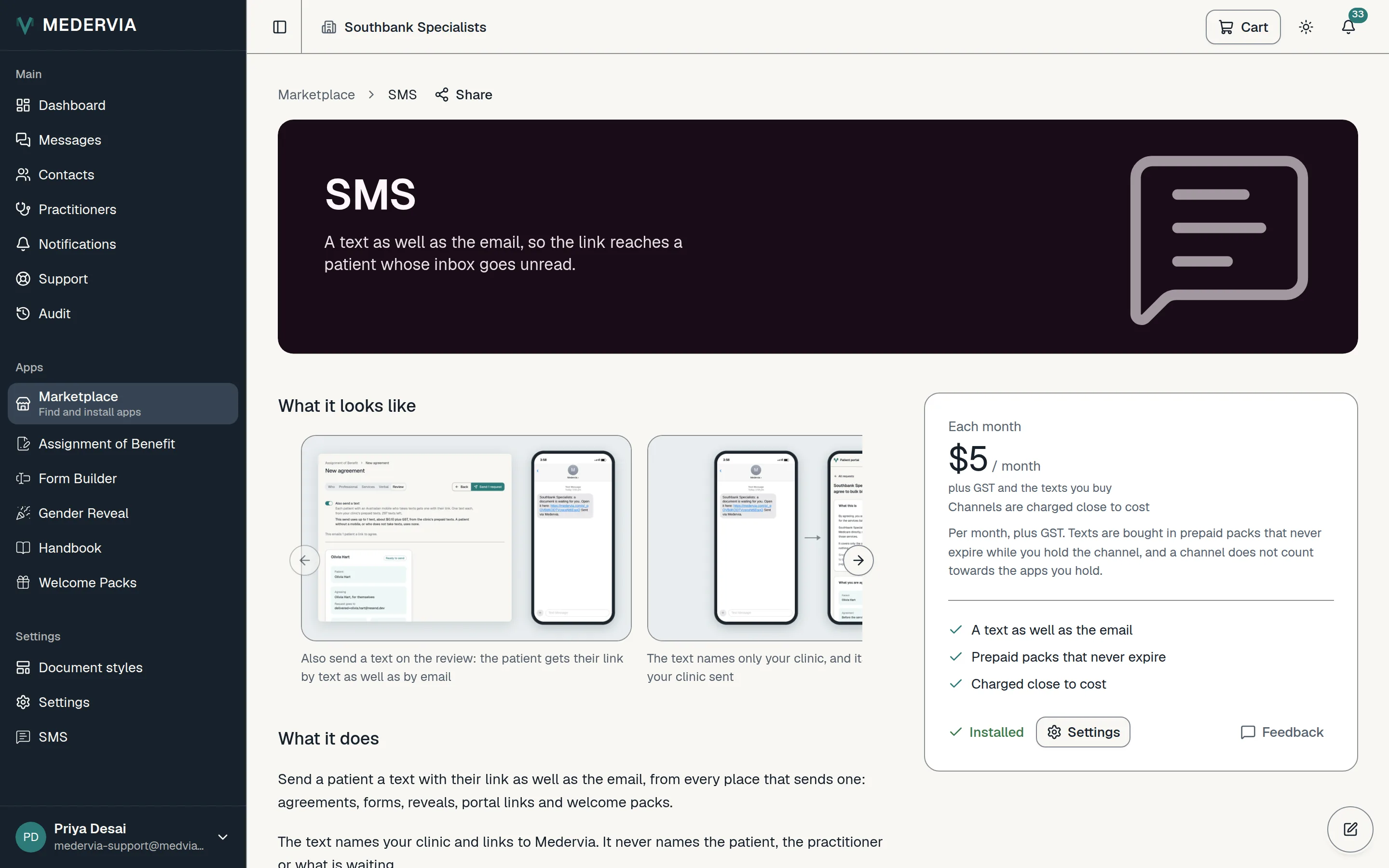
Open Marketplace in the sidebar. SMS is listed under Channels, below the apps. Add it to the cart, choose a starting pack of texts on its line, and subscribe.
SMS is charged close to cost: it has no free period, and the discount for several apps neither applies to it nor counts it.
Choose who sends texts, and buy more when you need them
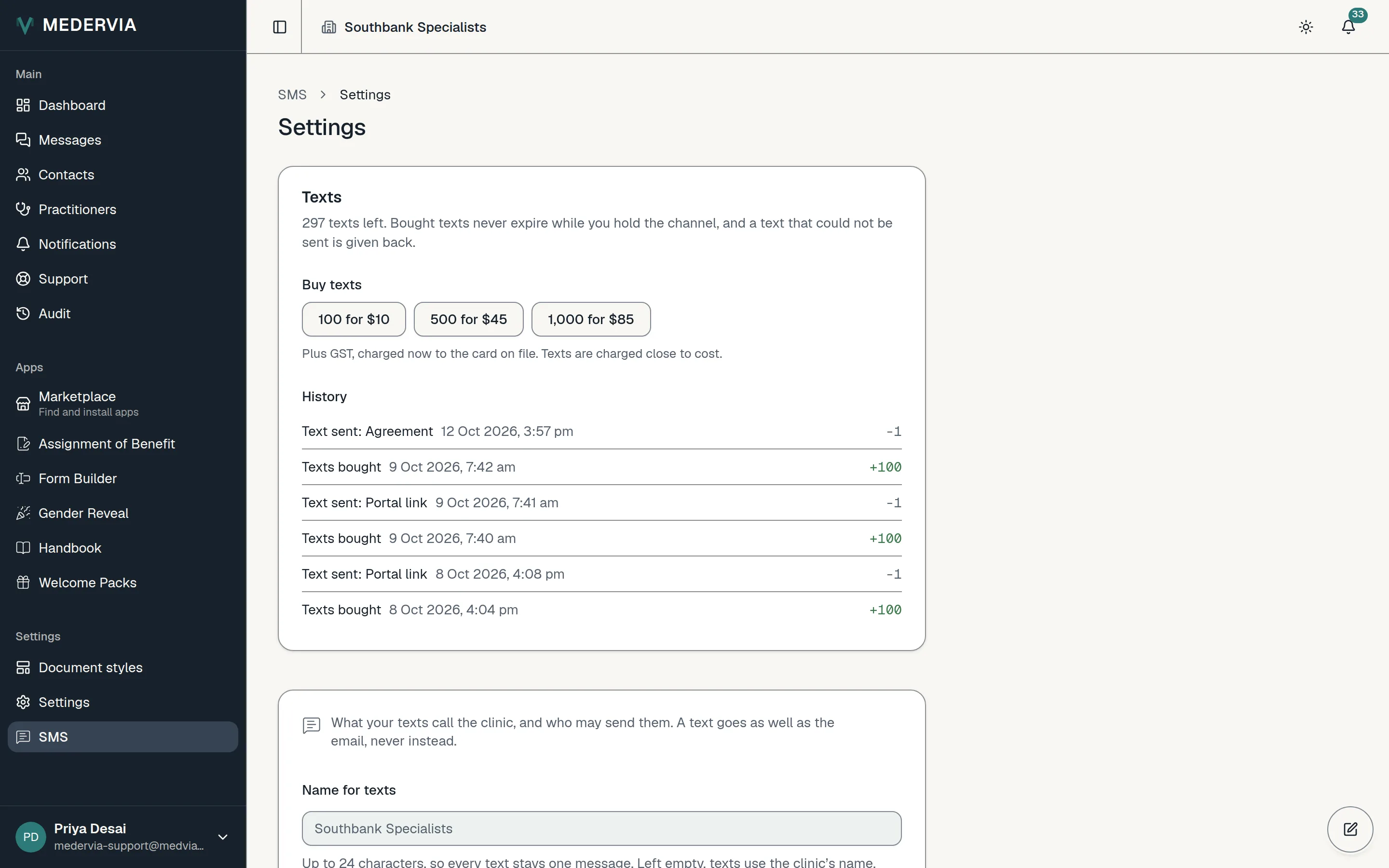
The channel's settings are under Settings, in the Apps tab. Name for texts is how your clinic is named in a text, if your full name is long. Who may send texts is Everyone at the clinic or Owners and admins only.
The same page shows how many texts are left and a history of every text sent and bought. To top up, choose a pack under Buy texts. It is charged at once to the clinic's payment method, and texts never expire while you hold the channel.
Check the patient takes texts
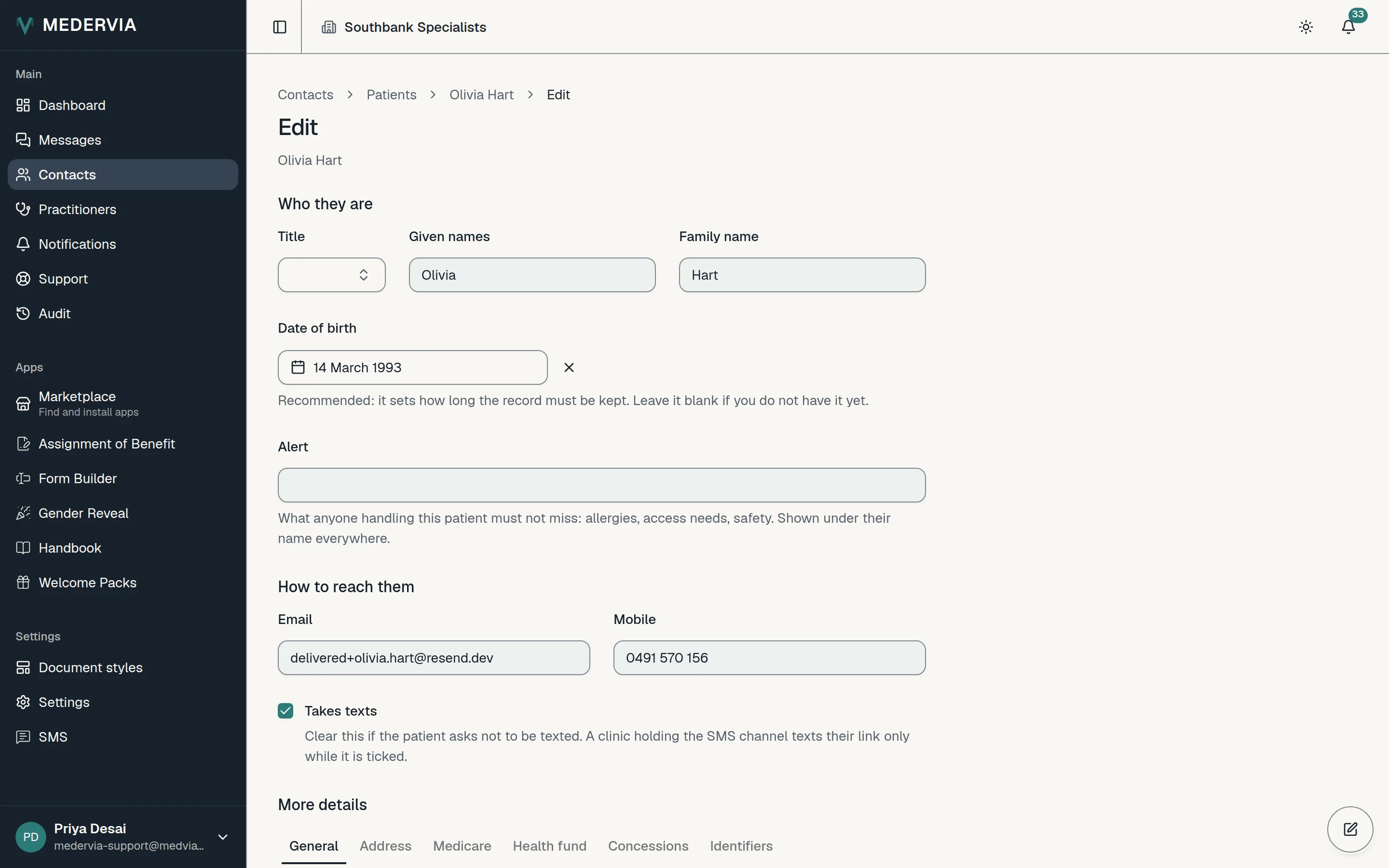
A text goes to the Mobile on the patient's record, and only while Takes texts is ticked. Clear it if a patient asks not to be texted.
Only Australian mobile numbers are texted.
Switch on the text when you send
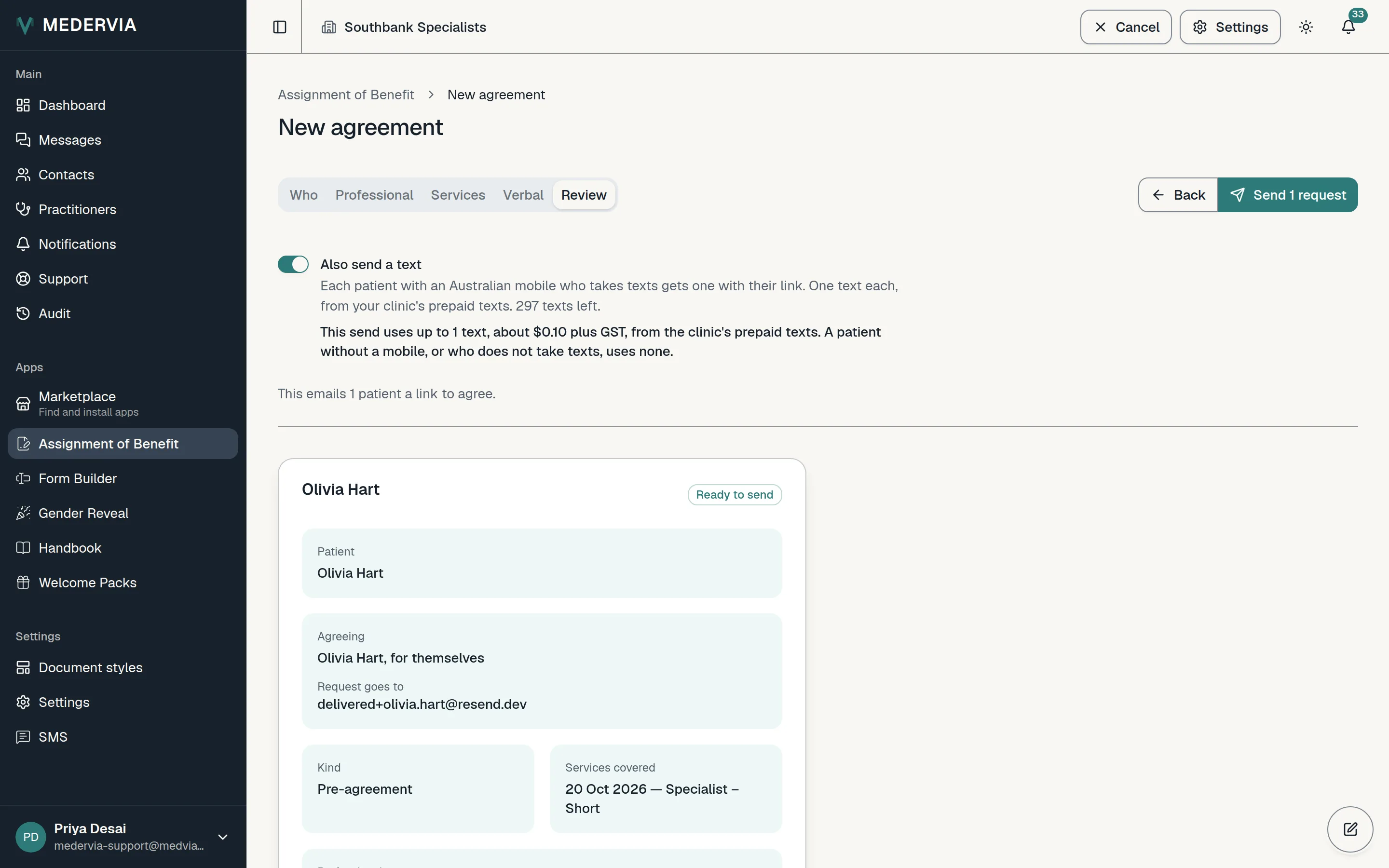
Every send that emails a patient a link offers Also send a text on its review: an agreement, a form, a welcome pack, a reveal invitation and Send portal link. Switch it on and the review says how many texts the send uses.
A patient with no mobile, or who doesn't take texts, gets the email only and uses no text. After the send, Medervia tells you how many texts went.
See that it arrived
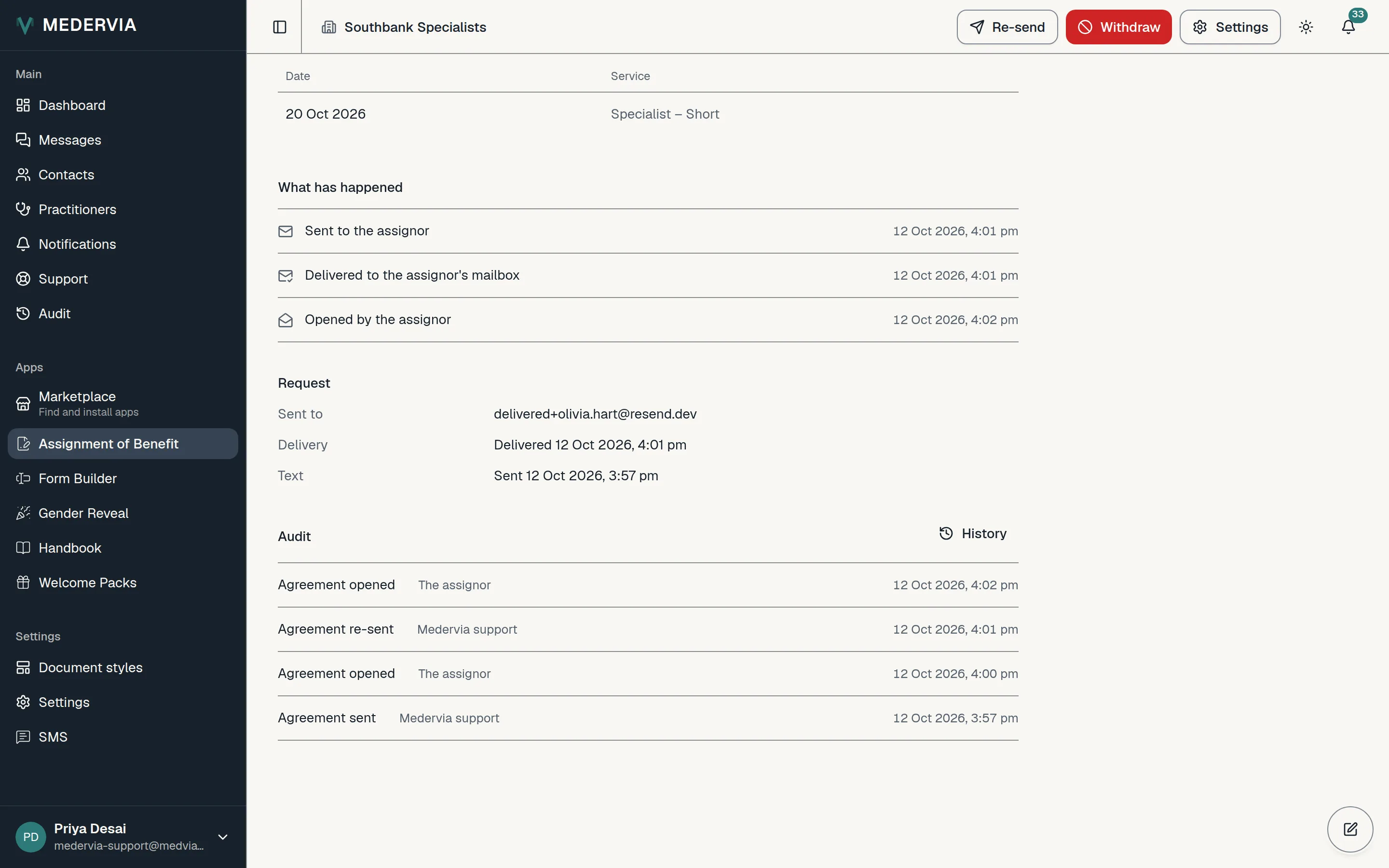
The record shows a Text line beside the email's, with whether the text was delivered. Send again texts the patient again if the first send was texted.
Good to know
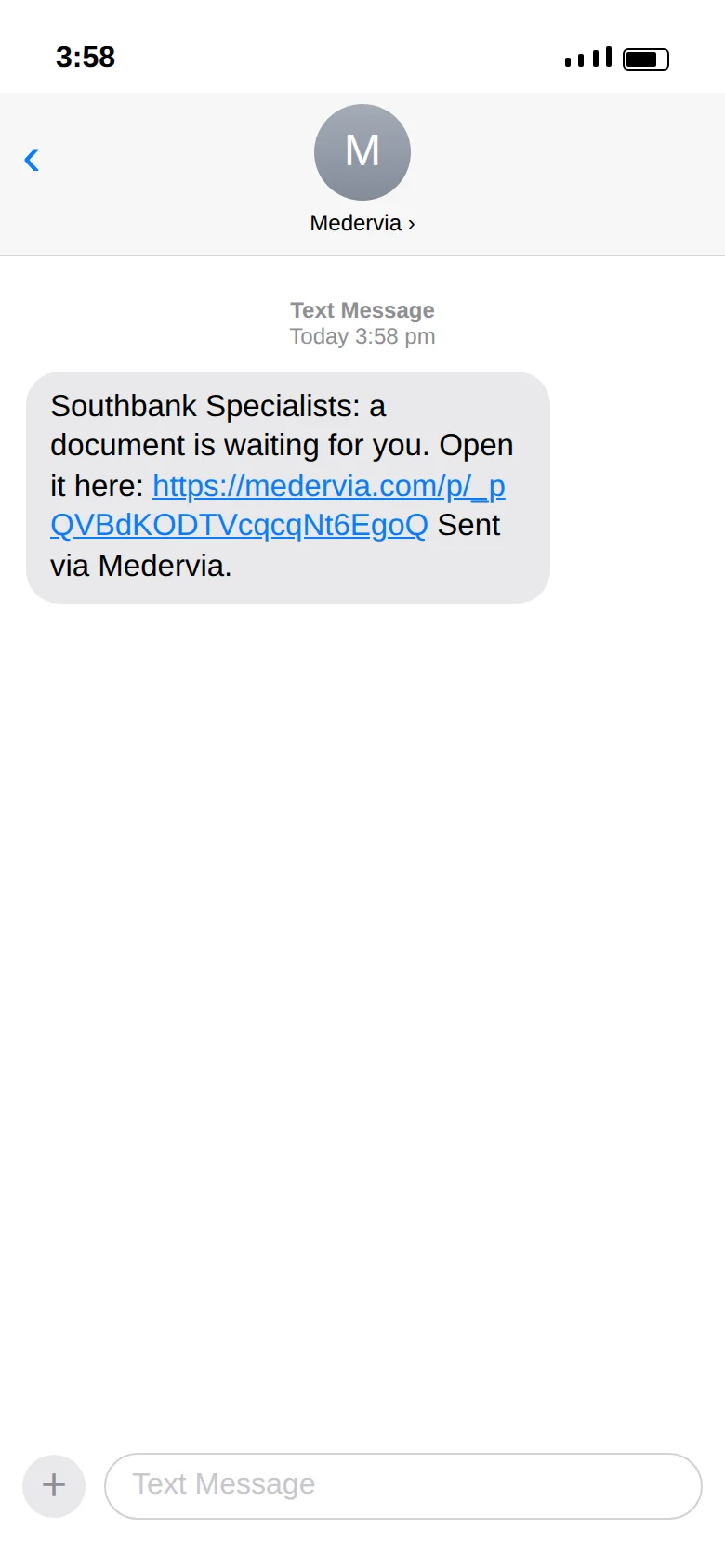
- A text names your clinic, says something is waiting and gives a link. It never names the patient, the practitioner or what the document is.
- A link opened from a text shows the patient only what your clinic sent them.
- Patients can't reply to a text. Their questions come to your clinic the usual way.
Next
Still stuck? Open a ticket from Support in the app, or send us a message.