Guides · Assignment of Benefit
Send an assignment of benefit agreement
Choose the patients, practitioner and services, then send each patient their agreement to accept.
Before your first send, two things need to be done: your document style confirmed, and your clinic's reply address confirmed. Medervia tells you if either is missing.
Start a new agreement
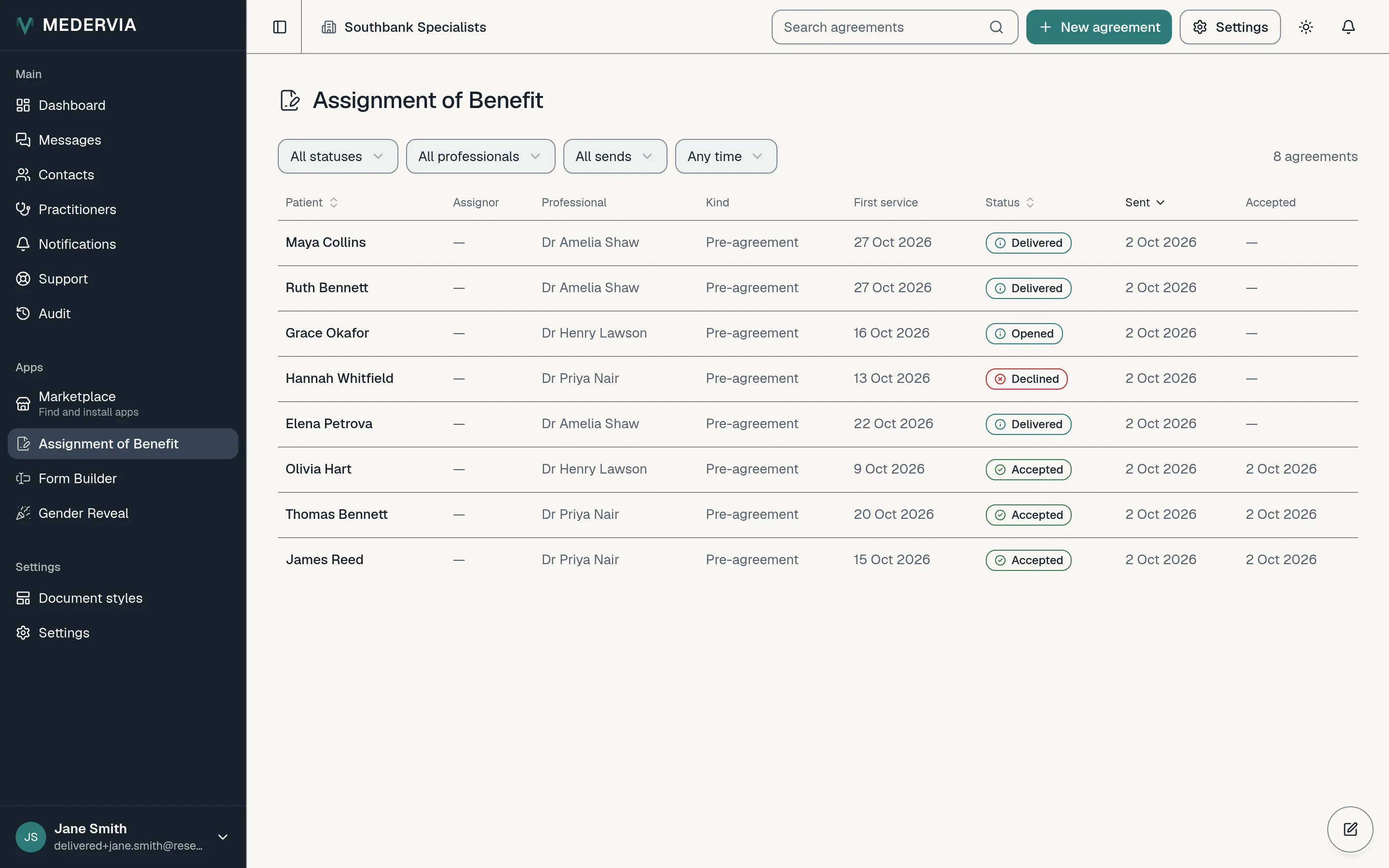
Open Assignment of Benefit in the sidebar and press New agreement.
Your progress is saved as you go. If you leave part-way, press Continue draft to pick up where you left off.
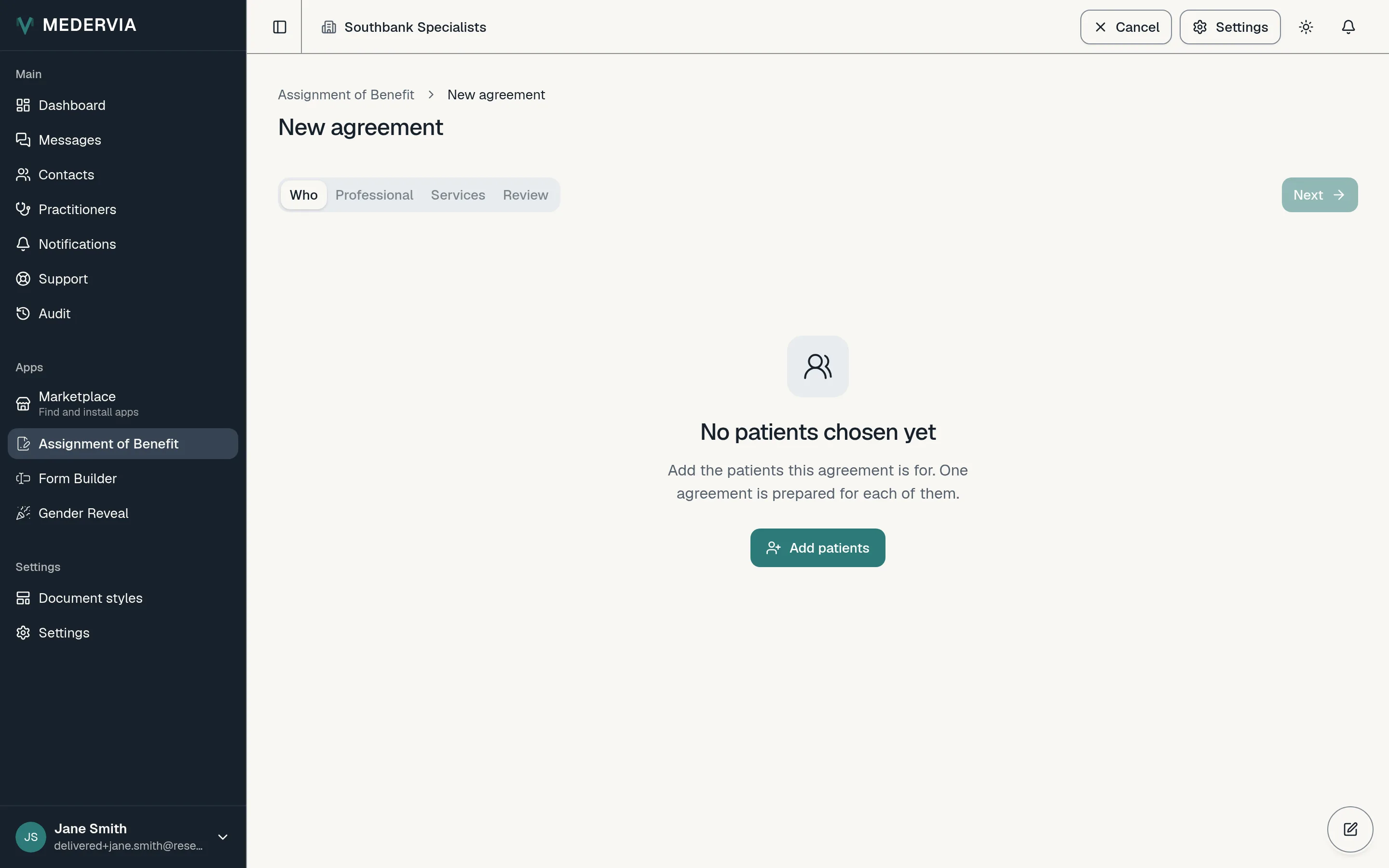
Choose the patients
Press Add patients and tick each patient the agreement is for. You can send to one patient or several at once.
For each patient, choose who is agreeing: the patient themselves, or a related person such as a parent or spouse.
Choose the practitioner and location
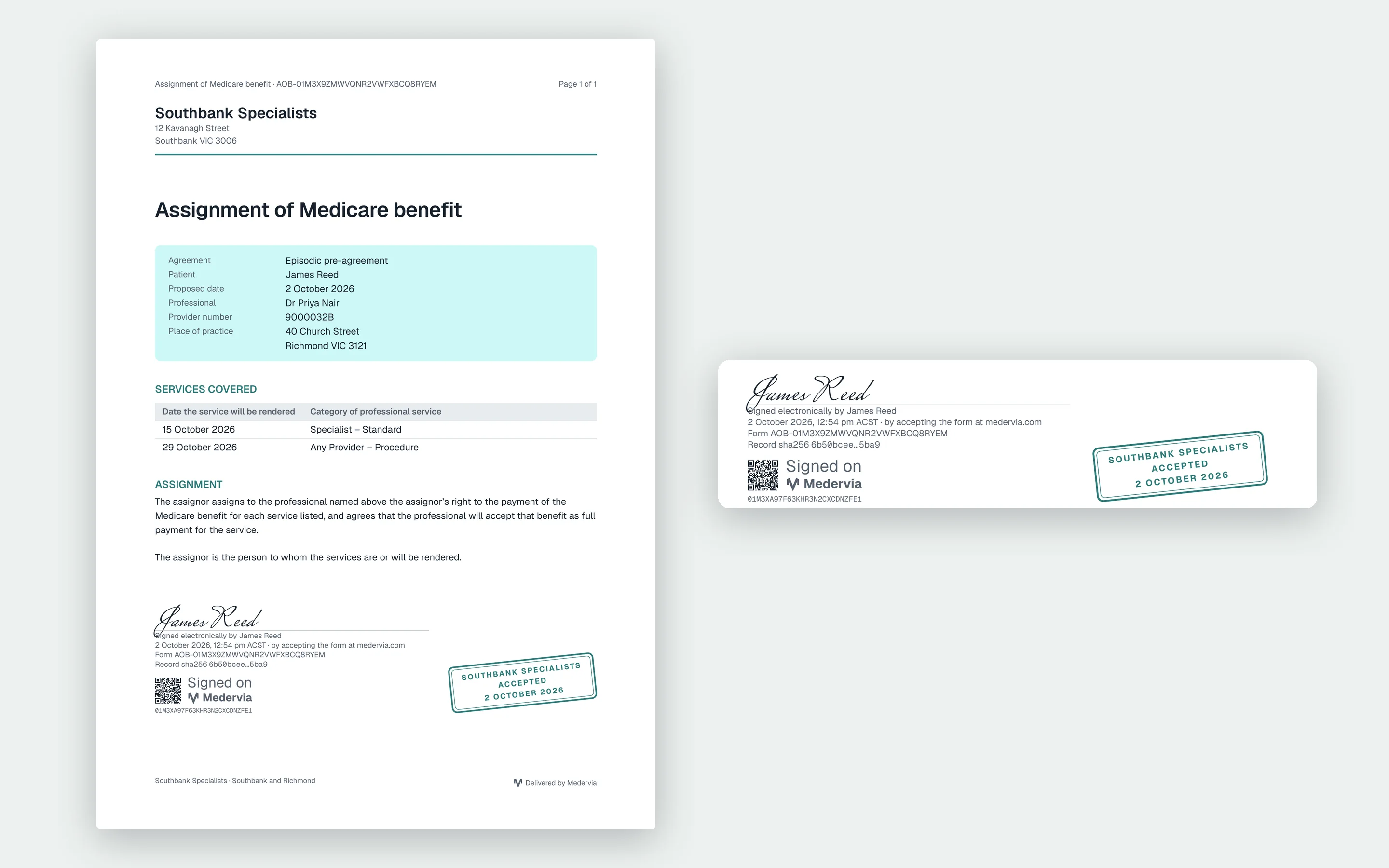
Choose the practitioner and the location. Underneath, you will see exactly what the agreement will say, including the provider number from your roster.
Add the services
Choose whether the agreement is made before or after the service. Then add each service with its date: a service category if it is before, or an MBS item number if it is after.
Check and send
Each patient has a card showing whether it is ready to send or needs attention. Press Preview PDF to see exactly what the patient will receive. When everything is ready, press Send.
Good to know
- The patient gets an email from your clinic and opens the agreement from it. They read it, then agree, or tell you something is wrong.
- When they accept, your clinic's copy arrives by email with the PDF attached, and the patient's copy waits in their portal.
Next
Still stuck? Open a ticket from Support in the app, or send us a message.